Set up levels and zones
Add a building’s levels and rooms in Sites & Assets, give each level a floor number, and place systems in them so the Levels drawing shows where everything is.
Steps
Step 1: Add a zone
In Sites & Assets, on the building’s row, choose Add zone. Name it, choose its type (a floor, wing, room, area or plant room) and give it a floor number, then choose Add.

- The Floor # is what places a zone on the Levels drawing.
Step 2: Check the levels in the tree
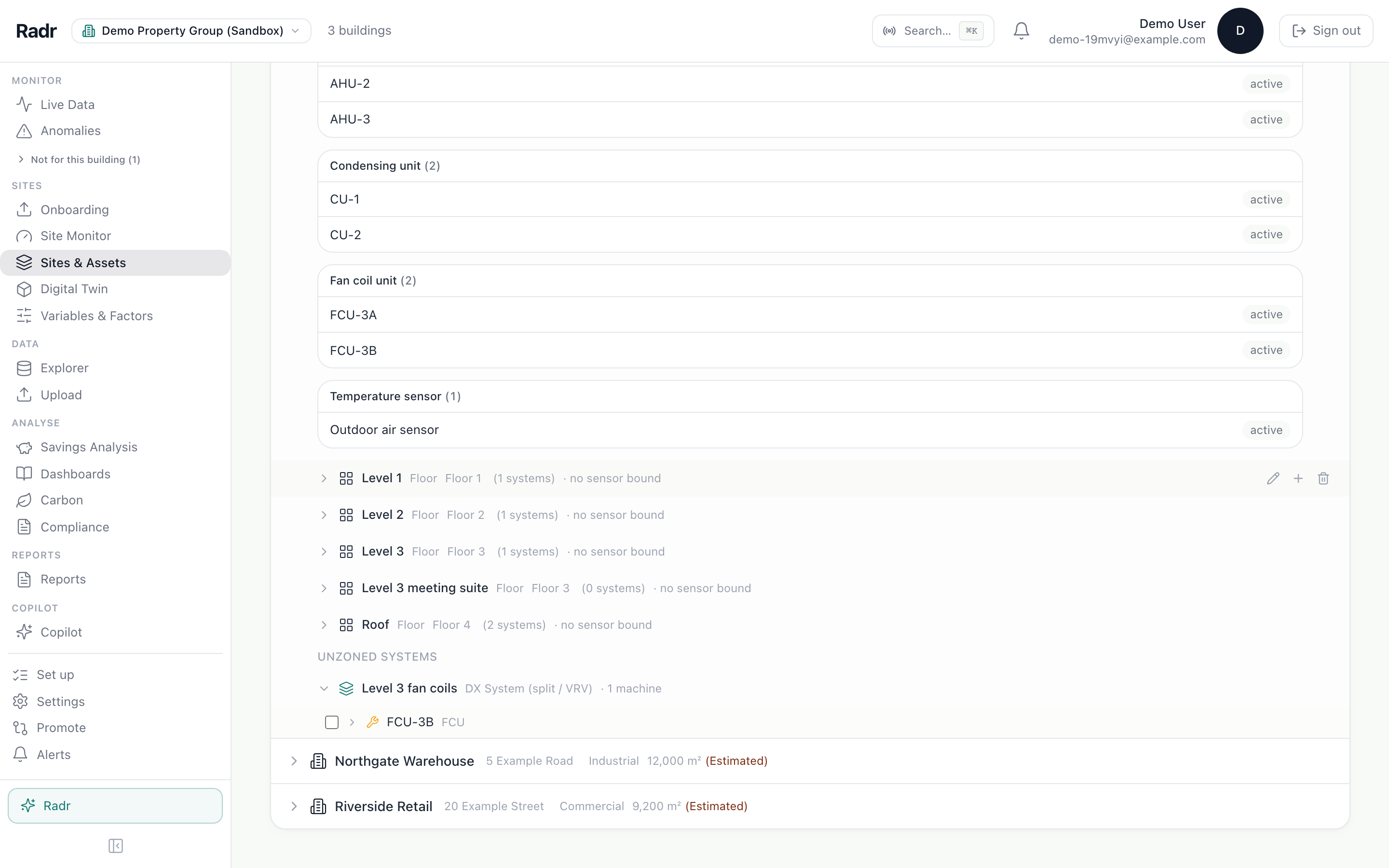
Each zone is listed under the building with its floor number and how many systems sit in it. To place a system, edit it and choose its Room, or choose Add system to zone on the zone’s row.
What you’ll see
- The Levels drawing in Site Monitor draws one row per floor number, with each unit on the level its system is in or serves.
Troubleshooting
- Two zones appear as one level.
- They share a floor number. That is right for rooms on the same floor; otherwise, correct the number.
- A unit is on the wrong level.
- Edit its system and choose the right Room.
Last verified against Radr on 28 September 2026. Screenshots show the real product with a simulated estate; every name and reading in them is invented.
Find equipment on the Levels drawing
Use the Levels drawing in Site Monitor to see a building floor by floor with the units that serve each floor, then open a level or unit for its readings today.
MonitoringAdd equipment and its data points
Add a system and its equipment to a building in Sites & Assets, then register what each machine measures, so every reading is attributed to the right machine.
AssetsAdd your first building
Add a building to Radr from Sites & Assets: its name, address, country and time zone, and its floor area with where the figure came from, so intensities hold up.
Getting startedStuck on a step?
Tell us which guide and which step, and we will help, then fix the guide.