Choose who is notified, and when
Set how alerts reach people in Radr: how many are sent, quiet hours, default recipients and escalation, and Slack or Microsoft Teams channels for the whole team.
Steps
Step 1: Set quiet hours
Choose Alerts at the bottom of the navigation, then its Settings tab. Under Quiet hours, choose when non-critical alerts should wait, and in which time zone. Critical alerts always go straight through.

Step 2: Choose the default recipients
Default recipients are told about any rule that names nobody. Enter their addresses, separated by commas, then choose Save settings. Delivery budgets, above, limit how many alerts are sent, so a noisy day cannot bury the important one.

Step 3: Add a team channel
In Settings, on the Organisation tab, Notification Channels sends alerts to a Slack or Microsoft Teams channel. Choose Add Channel, pick the type, name it and paste the channel’s webhook address. Test sends a sample message.
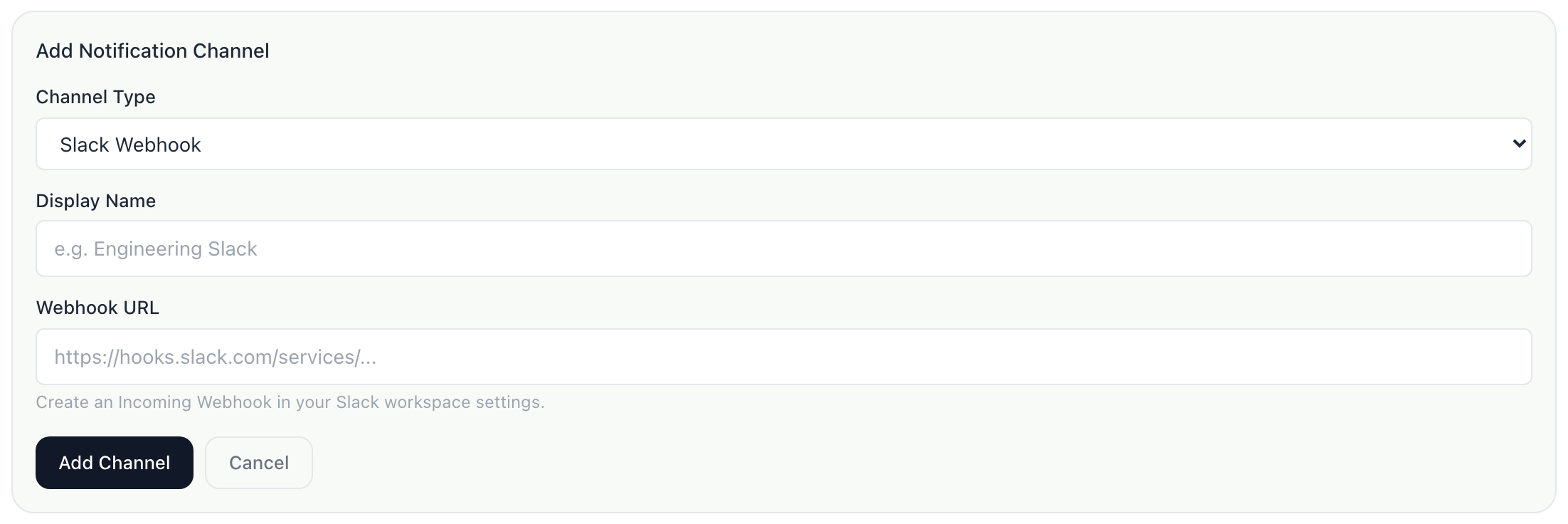
What you’ll see
- Escalation policies and on-call schedules, lower on the alert Settings tab, decide who is told next when nobody acknowledges an alert.
Troubleshooting
- The settings are read-only.
- Only Admins can change delivery settings.
- Nothing arrives in the channel.
- Choose Test on the channel. If the test does not arrive, the webhook address is wrong or has been revoked in Slack or Teams.
Last verified against Radr on 28 September 2026. Screenshots show the real product with a simulated estate; every name and reading in them is invented.
Set up an alert rule
Create a rule that alerts you when a building’s energy jumps, passes a level you set or stops reporting, and choose how serious it is and who is told.
Alerts and the daily briefInvite a colleague and choose their role
Invite colleagues to your Radr workspace by email, give each a role that sets what they may do (Admin, Manager, Analyst or Viewer), and change it later.
Getting startedTurn on the daily brief
Let Radr’s assistant keep watch over your buildings and write a short brief each morning about the day before, shown on Home and emailed to your admins.
Alerts and the daily briefStuck on a step?
Tell us which guide and which step, and we will help, then fix the guide.