Invite a colleague and choose their role
Invite colleagues to your Radr workspace by email, give each a role that sets what they may do (Admin, Manager, Analyst or Viewer), and change it later.
Steps
Step 1: Open Settings
Choose Settings at the bottom of the navigation. It opens on the Organisation tab, where your members and invitations are kept.
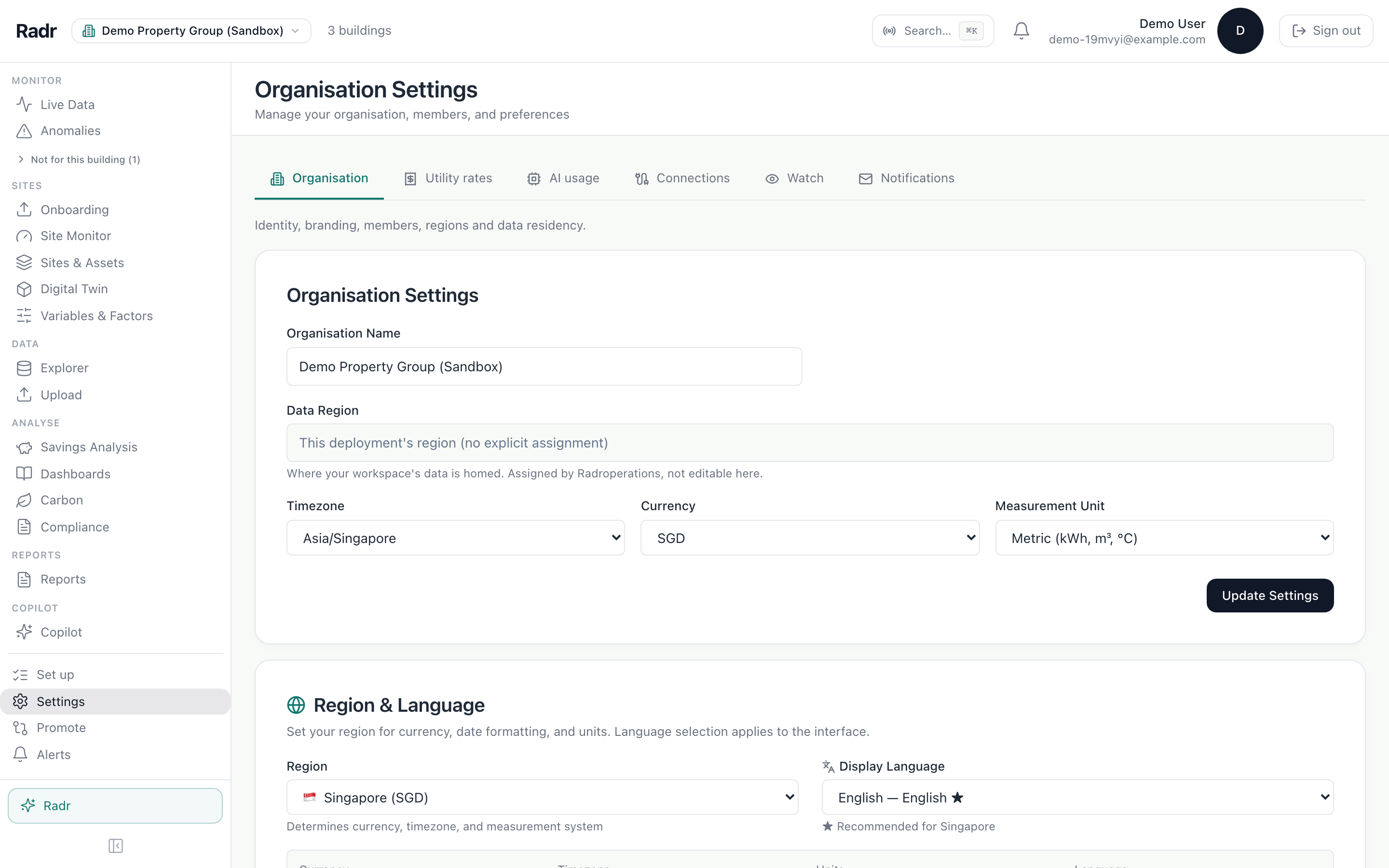
Step 2: Enter their email and choose a role
Scroll to Invite Members. Enter your colleague’s work email and choose a role. Admin has full control of people, buildings, projects and settings. Manager manages buildings, assets, equipment and projects. Analyst works with analytics, reports and insights. Viewer can only read.

Step 3: Send the invitation
Choose Send Invite. Radr emails the invitation, which lasts seven days and can be accepted only from that address. It is listed under Pending Invitations until then, and Withdraw cancels it.
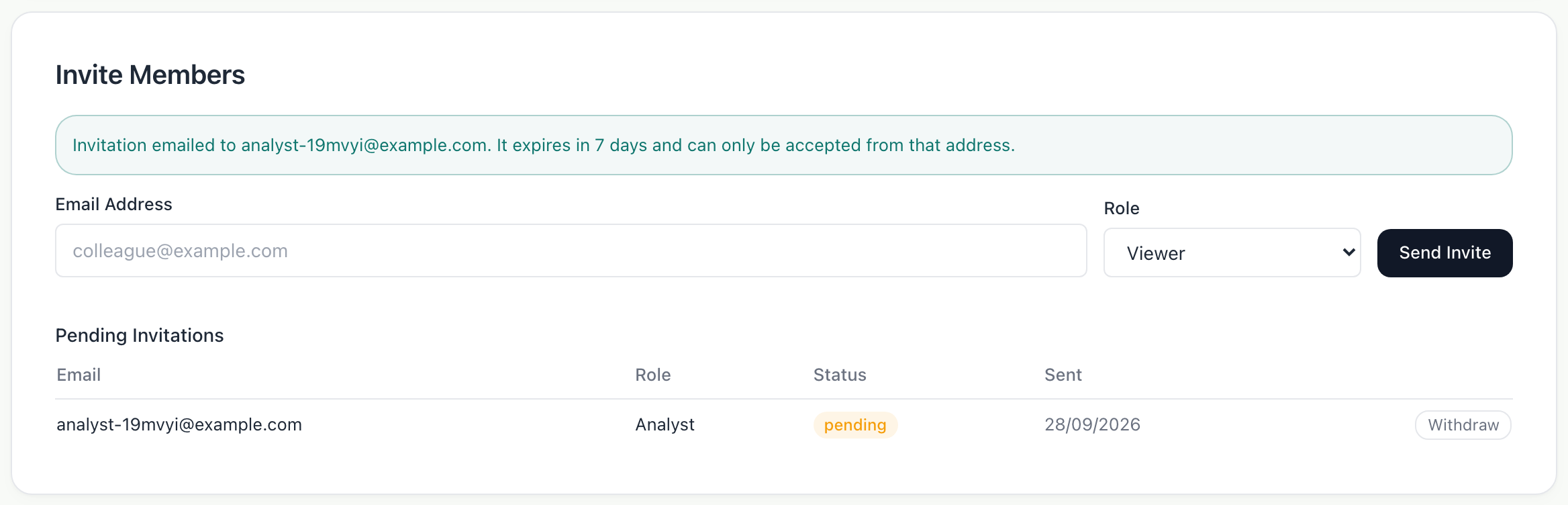
Step 4: Check who has access
Once your colleague accepts, they appear under Team & Roles with their role, the buildings they can see, and whether they use two-factor sign-in.
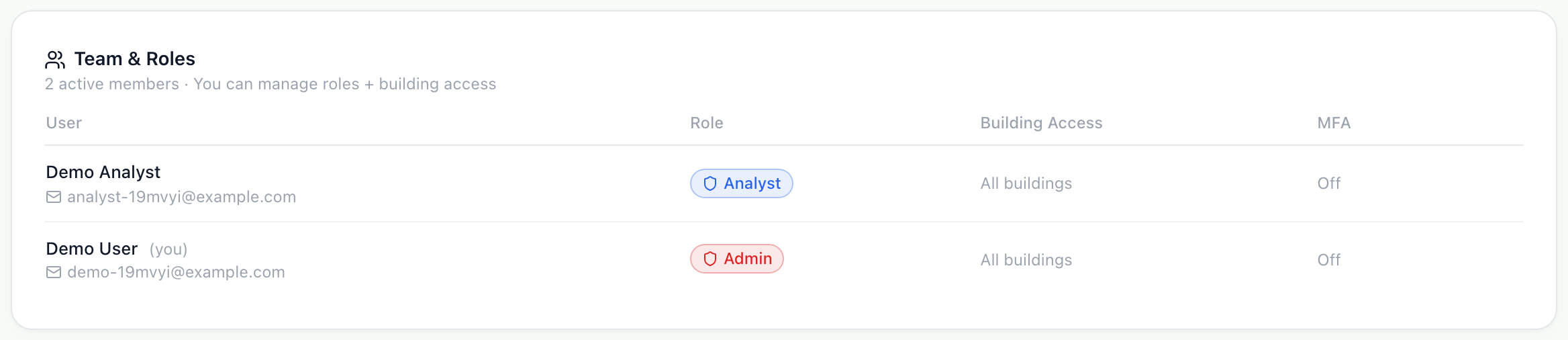
Step 5: Change a role later
Hover over the member and choose the pencil, Edit role + access. Choose a new role, or limit them to particular buildings, then choose Save changes.
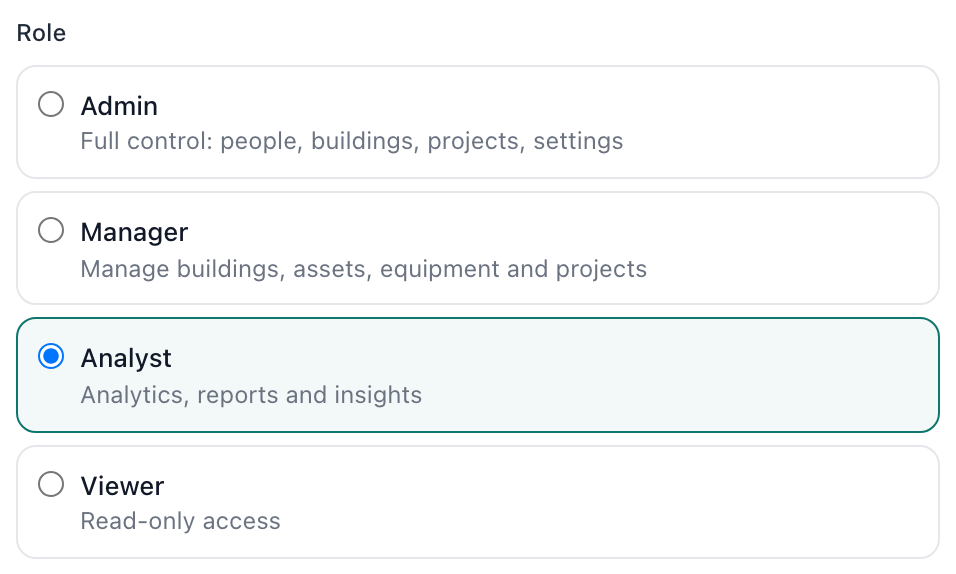
- Below the roles, Restrict to specific buildings limits which buildings the member can see.
What you’ll see
- Your colleague signs in and sees the workspace in their switcher.
- What they can do follows their role everywhere in Radr, not only in what the screens show them.
Troubleshooting
- Sending fails with Insufficient permissions.
- Only an Admin can invite. Ask an Admin to send it, or to change your role.
- My colleague cannot accept the invitation.
- They must accept it from the address it was sent to. If it has expired, withdraw it and send another.
- There is no pencil on a member’s row.
- The owner’s role cannot be edited, and only Admins can edit anyone.
Last verified against Radr on 28 September 2026. Screenshots show the real product with a simulated estate; every name and reading in them is invented.
Create your Radr workspace
Register for Radr, confirm your email address and create the workspace that will hold your buildings, readings and colleagues, with its time zone and currency.
Getting startedChoose who is notified, and when
Set how alerts reach people in Radr: how many are sent, quiet hours, default recipients and escalation, and Slack or Microsoft Teams channels for the whole team.
AdminAdd your first building
Add a building to Radr from Sites & Assets: its name, address, country and time zone, and its floor area with where the figure came from, so intensities hold up.
Getting startedStuck on a step?
Tell us which guide and which step, and we will help, then fix the guide.