Set up an alert rule
Create a rule that alerts you when a building’s energy jumps, passes a level you set or stops reporting, and choose how serious it is and who is told.
Steps
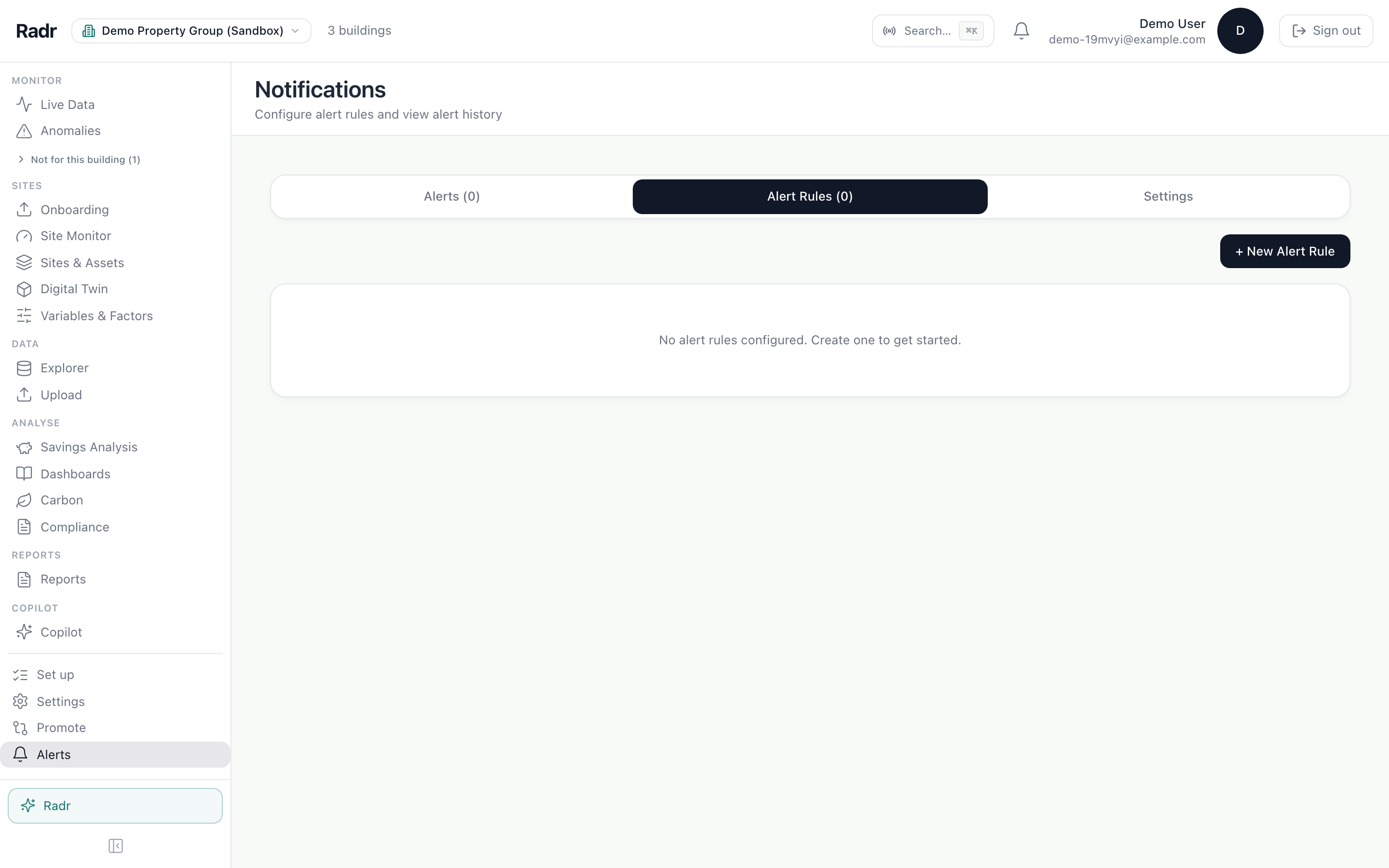
Step 1: Open Alerts, then Alert Rules
Choose Alerts at the bottom of the navigation, then the Alert Rules tab. It lists every rule, who it tells and whether it is active.
Step 2: Describe the rule
Choose New Alert Rule. Name it and choose the building and the alert type: a usage spike against the site’s own recent pattern, a fixed level, a gap in the data, or chiller efficiency drifting from its target. For a fixed level, choose the measurement and the value. Set the severity and tick who should be told.
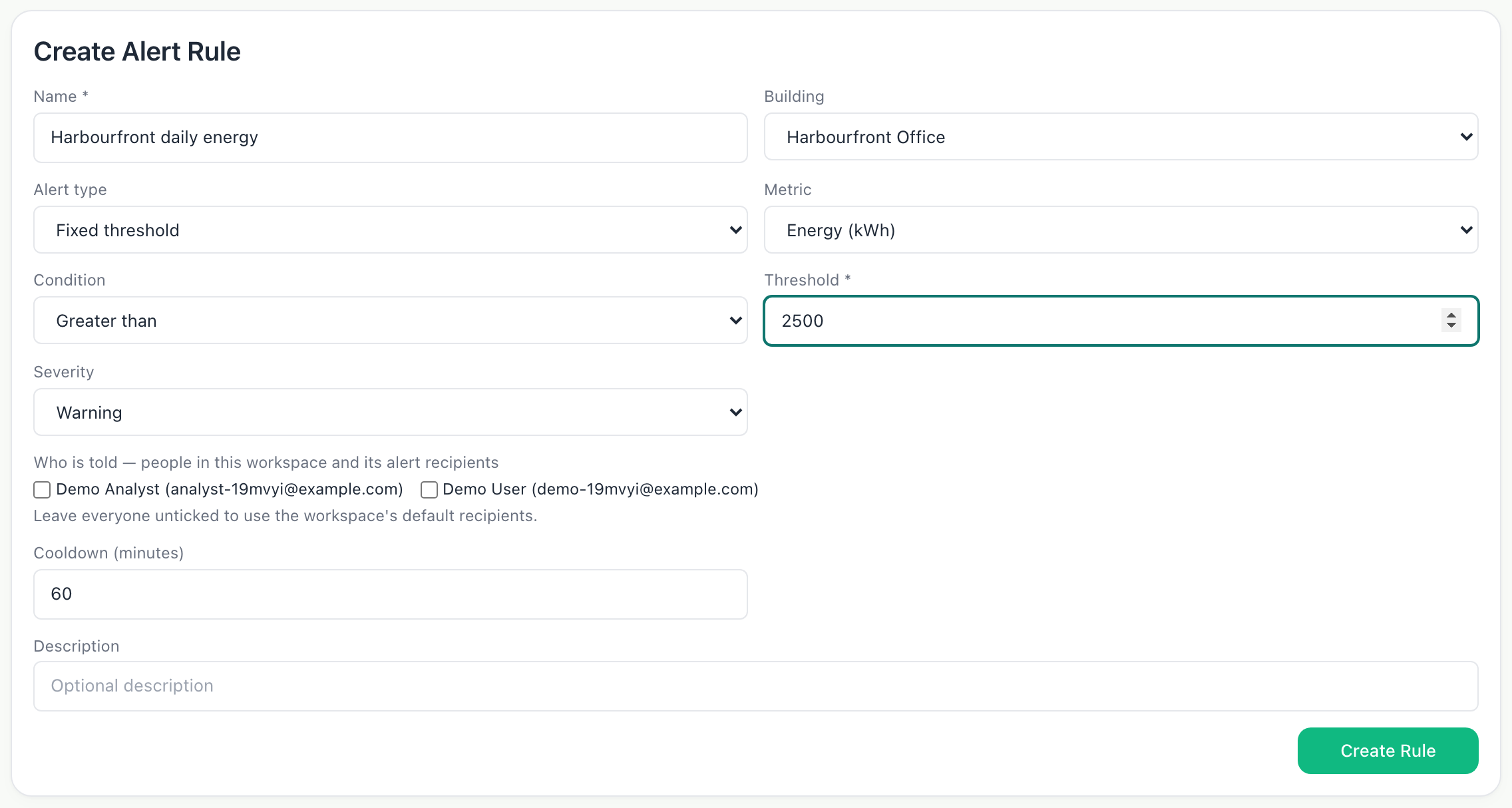
- Cooldown stops a rule that has just fired from firing again straight away.
Step 3: Create it
Choose Create Rule. It is listed as active straight away. Pause stops it without deleting it.

What you’ll see
- When the rule fires, the alert appears on the Alerts tab and in the counts on Home, and the people you ticked are emailed.
- Acknowledging an alert tells your colleagues someone has it in hand.
Troubleshooting
- There is no New Alert Rule button.
- Creating rules needs the Admin role.
- A rule has never fired.
- Rules are checked on a schedule against complete days, so today counts once it has ended. Check the rule names the building and measurement that report.
Last verified against Radr on 28 September 2026. Screenshots show the real product with a simulated estate; every name and reading in them is invented.
Choose who is notified, and when
Set how alerts reach people in Radr: how many are sent, quiet hours, default recipients and escalation, and Slack or Microsoft Teams channels for the whole team.
AdminTurn on the daily brief
Let Radr’s assistant keep watch over your buildings and write a short brief each morning about the day before, shown on Home and emailed to your admins.
Alerts and the daily briefCompare your locations
See every building at once in Locations, grouped by region, country or type and placed on a map with its energy and open alerts, then open any one for the detail.
MonitoringStuck on a step?
Tell us which guide and which step, and we will help, then fix the guide.