Generate a report
Generate a PDF or slide deck in Reports: choose the building, the report type and the period, then download it, or schedule it for regular delivery.
Steps
Step 1: Open Reports
Choose Reports in the navigation. It opens on Generate; the other tabs hold verified savings, templates and schedules.

Step 2: Choose the building, type and period
Choose the building and the report type, then the period. A type the building cannot support says so in the list.
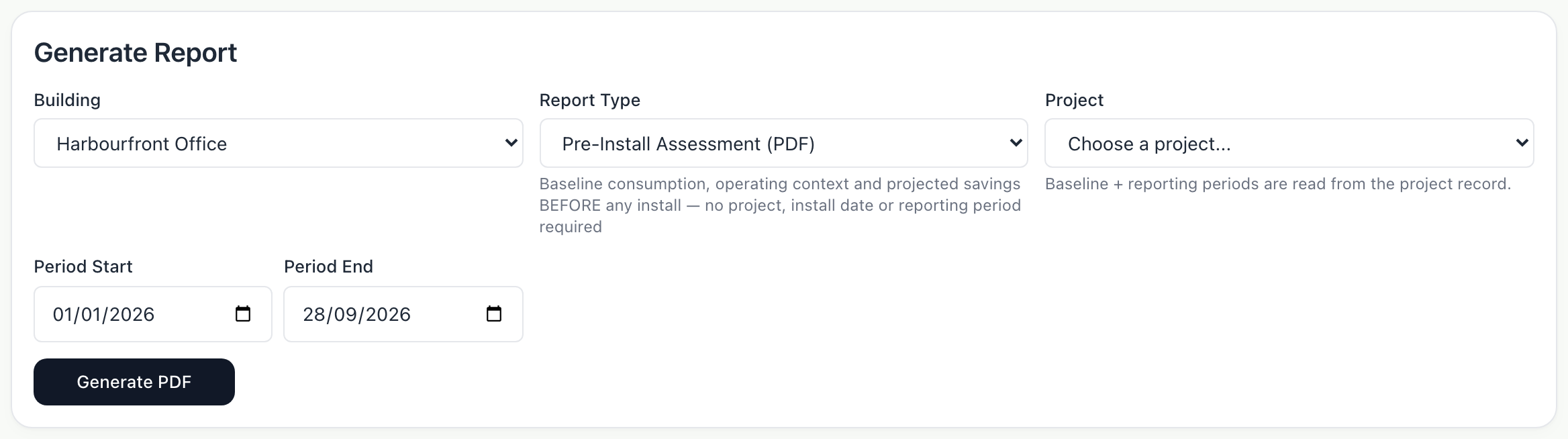
Step 3: Generate it
Choose Generate PDF. The report is listed under Generated Reports, where Download saves it.

What you’ll see
- Under Schedules, the same report can be sent on a regular cycle.
Troubleshooting
- A report type is marked not available for this building.
- It needs measurements the building does not have, such as temperatures. Choose another type.
- The savings section of a report is empty.
- Savings reports need a project with its baseline and reporting periods set, under Projects.
Last verified against Radr on 28 September 2026. Screenshots show the real product with a simulated estate; every name and reading in them is invented.
Choose an IPMVP option
What IPMVP Options A, B, C and D mean for a project, how Radr decides which option a result may claim, and where to declare how your building is verified.
Savings and M&VEstablish a baseline
Fit a baseline for a building in Savings Analysis: declare when it is occupied, apply a methodology card, fit it over a window and read the verdict it earns.
Savings and M&VRead the Overview
Use the Overview to see one building’s energy over a period you choose: the total, the daily trend and which kinds of equipment used it, with each figure’s basis.
MonitoringStuck on a step?
Tell us which guide and which step, and we will help, then fix the guide.