Leave a bad period out of analysis
Check a building’s data quality in the Explorer, then leave a bad period out of analysis, such as an outage or commissioning, with the reason kept on record.
Steps
Step 1: Open Explorer, then Data Quality
Under Data, choose Explorer, then the Data Quality tab, and choose the building. It lists stretches where a sensor repeated one value, windows declared as sensor down, and, lower down, Periods left out of analysis.

Step 2: Choose Leave a period out
Under Periods left out of analysis, choose Leave a period out. Enter when it started and ended, why (for example a data outage), which readings and analyses it applies to, and a reason in your own words.
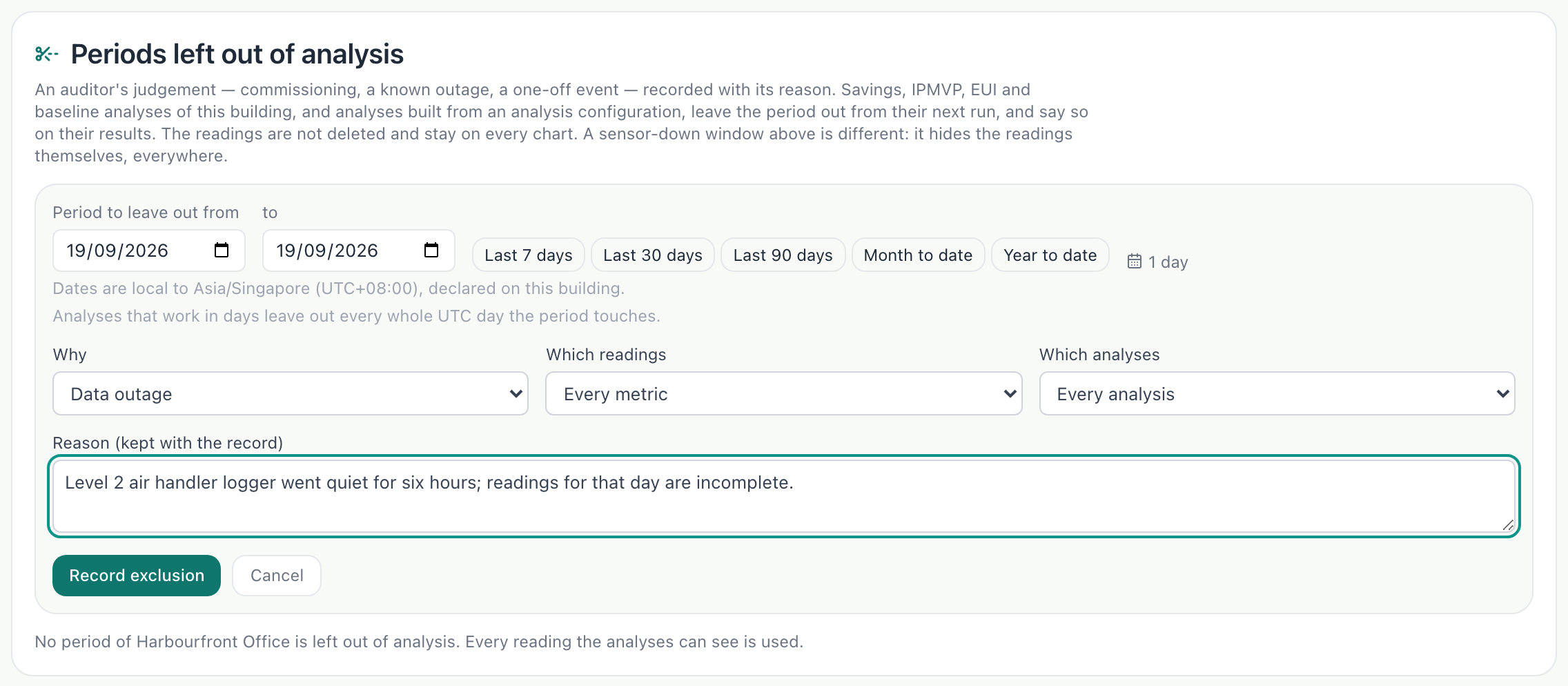
Step 3: Record it
Choose Record exclusion. The period is listed with its reason and who recorded it, and every analysis that runs over it says what was left out.
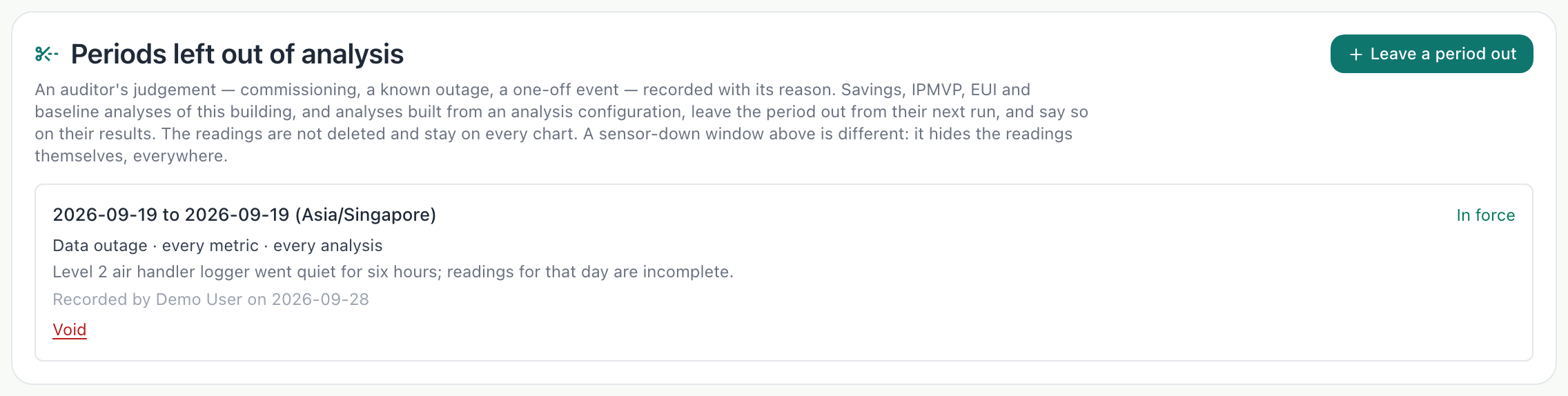
What you’ll see
- Nothing is deleted: the readings stay, and anyone can see what was left out and why.
Troubleshooting
- There is no Leave a period out button.
- Recording an exclusion needs the Admin role.
- An analysis still includes the period.
- Check the exclusion covers that analysis and those readings, and that its dates span the period.
Last verified against Radr on 28 September 2026. Screenshots show the real product with a simulated estate; every name and reading in them is invented.
Establish a baseline
Fit a baseline for a building in Savings Analysis: declare when it is occupied, apply a methodology card, fit it over a window and read the verdict it earns.
Savings and M&VWatch live readings
Follow a building’s readings as they arrive in Live Data: the latest value from each instrument, the last day drawn as charts, and every machine with its state.
MonitoringRead the Overview
Use the Overview to see one building’s energy over a period you choose: the total, the daily trend and which kinds of equipment used it, with each figure’s basis.
MonitoringStuck on a step?
Tell us which guide and which step, and we will help, then fix the guide.