Watch live readings
Follow a building’s readings as they arrive in Live Data: the latest value from each instrument, the last day drawn as charts, and every machine with its state.
Steps
Step 1: Open Live Data and choose a building
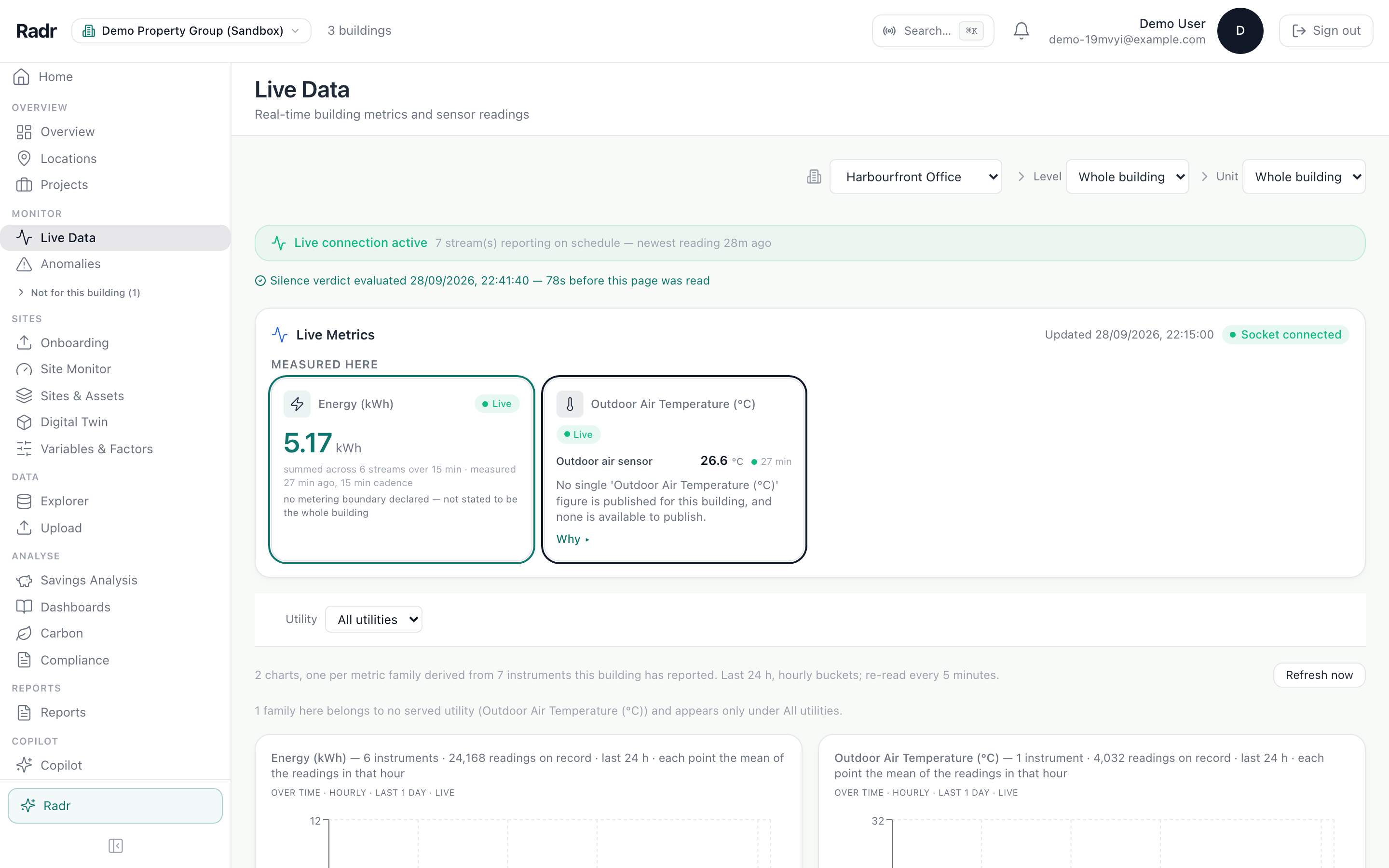
Under Monitor, choose Live Data and pick the building. The banner says whether readings are arriving, and each tile shows an instrument’s latest value.
Step 2: Read the last day
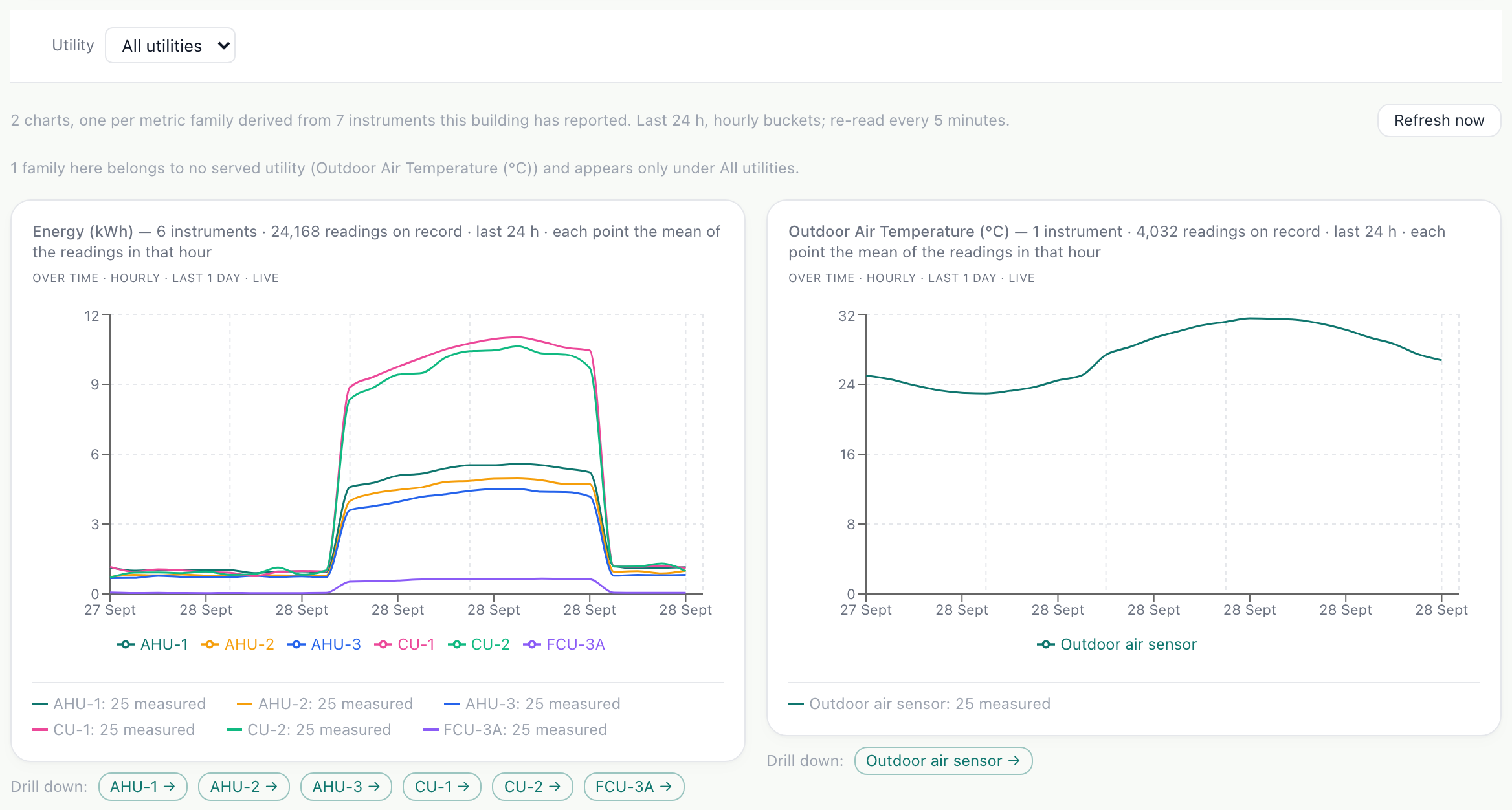
Below the tiles, the charts draw the last day for each kind of measurement. The arrow on a chart opens it in the Explorer, where you can drill down to a single hour.
What you’ll see
- Instruments carry the names you gave them.
- An instrument that has stopped reporting is marked stale, with when it last reported.
Troubleshooting
- Live Data says the building measures nothing.
- No source is delivering for it yet. Check Settings, Connections.
- A chart is missing a machine.
- Its readings may not be tied to it. Check the machine’s data points in Sites & Assets.
Last verified against Radr on 28 September 2026. Screenshots show the real product with a simulated estate; every name and reading in them is invented.
Read the Overview
Use the Overview to see one building’s energy over a period you choose: the total, the daily trend and which kinds of equipment used it, with each figure’s basis.
MonitoringFind equipment on the Levels drawing
Use the Levels drawing in Site Monitor to see a building floor by floor with the units that serve each floor, then open a level or unit for its readings today.
MonitoringStuck on a step?
Tell us which guide and which step, and we will help, then fix the guide.