Compare your locations
See every building at once in Locations, grouped by region, country or type and placed on a map with its energy and open alerts, then open any one for the detail.
Steps
Step 1: Open Locations
Under Overview, choose Locations. Group the sites by region, country or type, and choose the period. Every location is listed with its energy over the period and whether it is reporting.
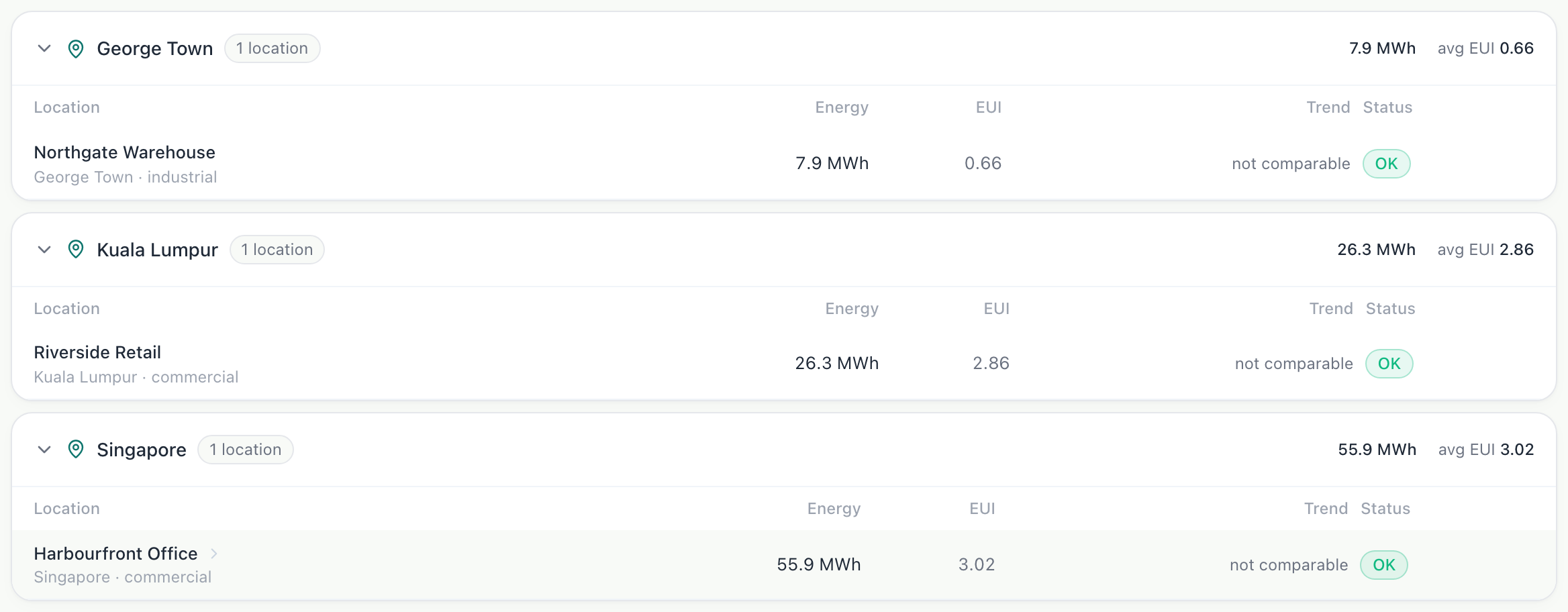
Step 2: Open a location
Choose a site in the list to open its panel: its energy over the period, its equipment, and any alerts open there.
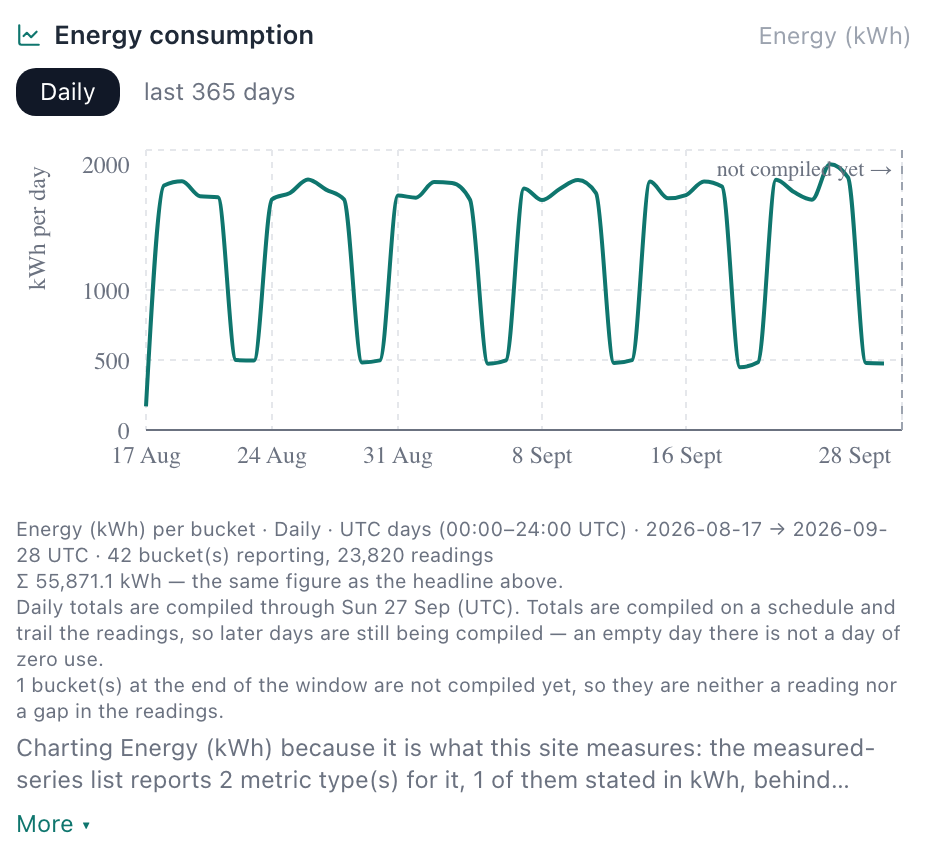
Step 3: See its levels
Choose the Levels tab in the panel for the same drawing Site Monitor shows, or Open in Site Monitor for the full view.
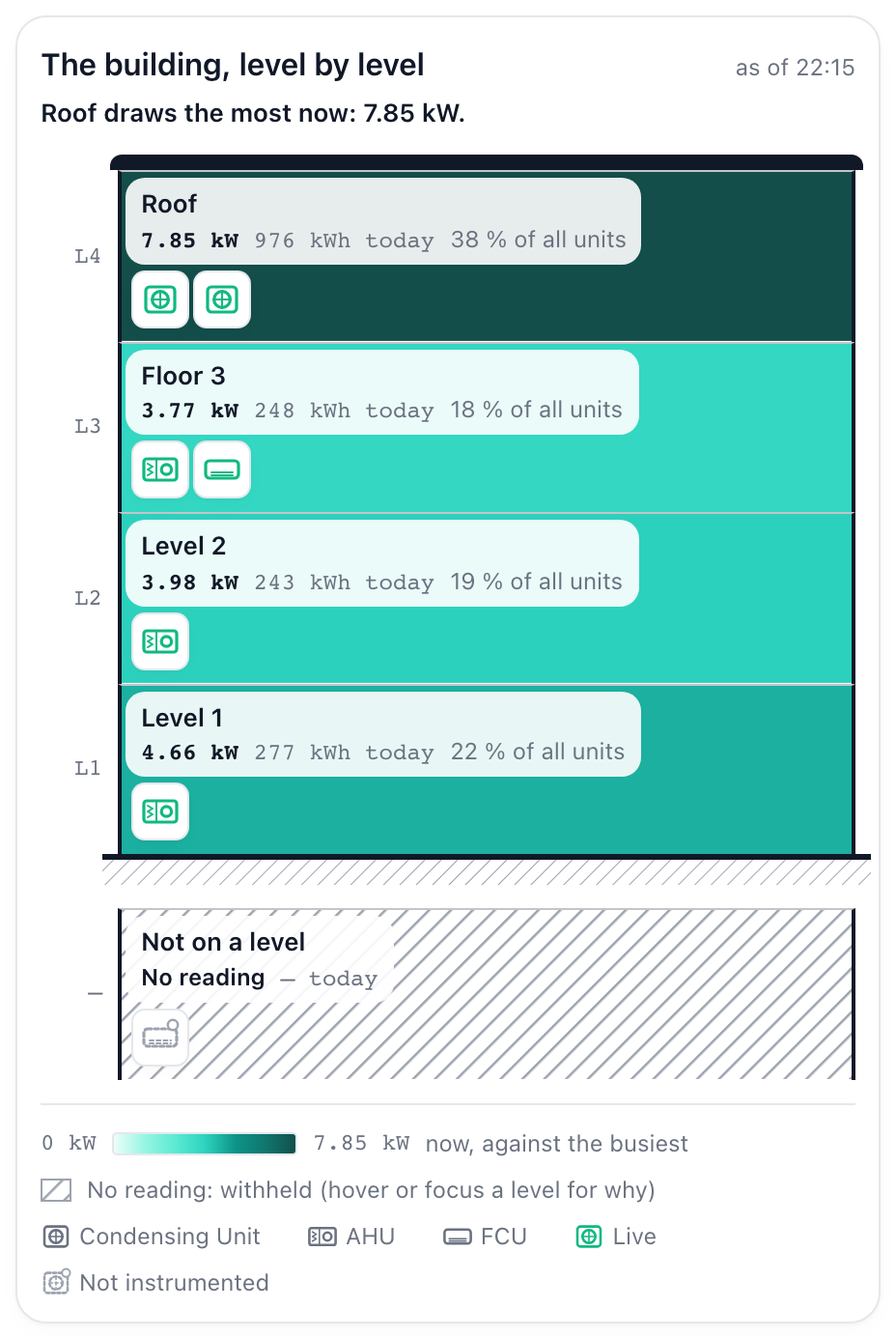
What you’ll see
- Sites whose readings have stopped are flagged, so a quiet site is not mistaken for an efficient one.
Troubleshooting
- A site is not on the map.
- It has no coordinates yet. Tell us the site and we will add them.
- A site is flagged No recent data.
- Its readings have stopped. Check its sources in Settings, Connections.
Last verified against Radr on 28 September 2026. Screenshots show the real product with a simulated estate; every name and reading in them is invented.
Read the Overview
Use the Overview to see one building’s energy over a period you choose: the total, the daily trend and which kinds of equipment used it, with each figure’s basis.
MonitoringFind equipment on the Levels drawing
Use the Levels drawing in Site Monitor to see a building floor by floor with the units that serve each floor, then open a level or unit for its readings today.
MonitoringSet up an alert rule
Create a rule that alerts you when a building’s energy jumps, passes a level you set or stops reporting, and choose how serious it is and who is told.
Alerts and the daily briefStuck on a step?
Tell us which guide and which step, and we will help, then fix the guide.