Choose between Guided, Analyse and Saved
Savings Analysis has three tabs: Guided walks you through a before-and-after comparison, Analyse gives you every setting, and Saved keeps the runs you trust.
Steps
Step 1: Open Savings Analysis
Choose Savings Analysis under Analyse. Three tabs sit at the top. It opens on Analyse, where you apply a methodology card or make every choice yourself: the measurement, the drivers, the window and the grain.

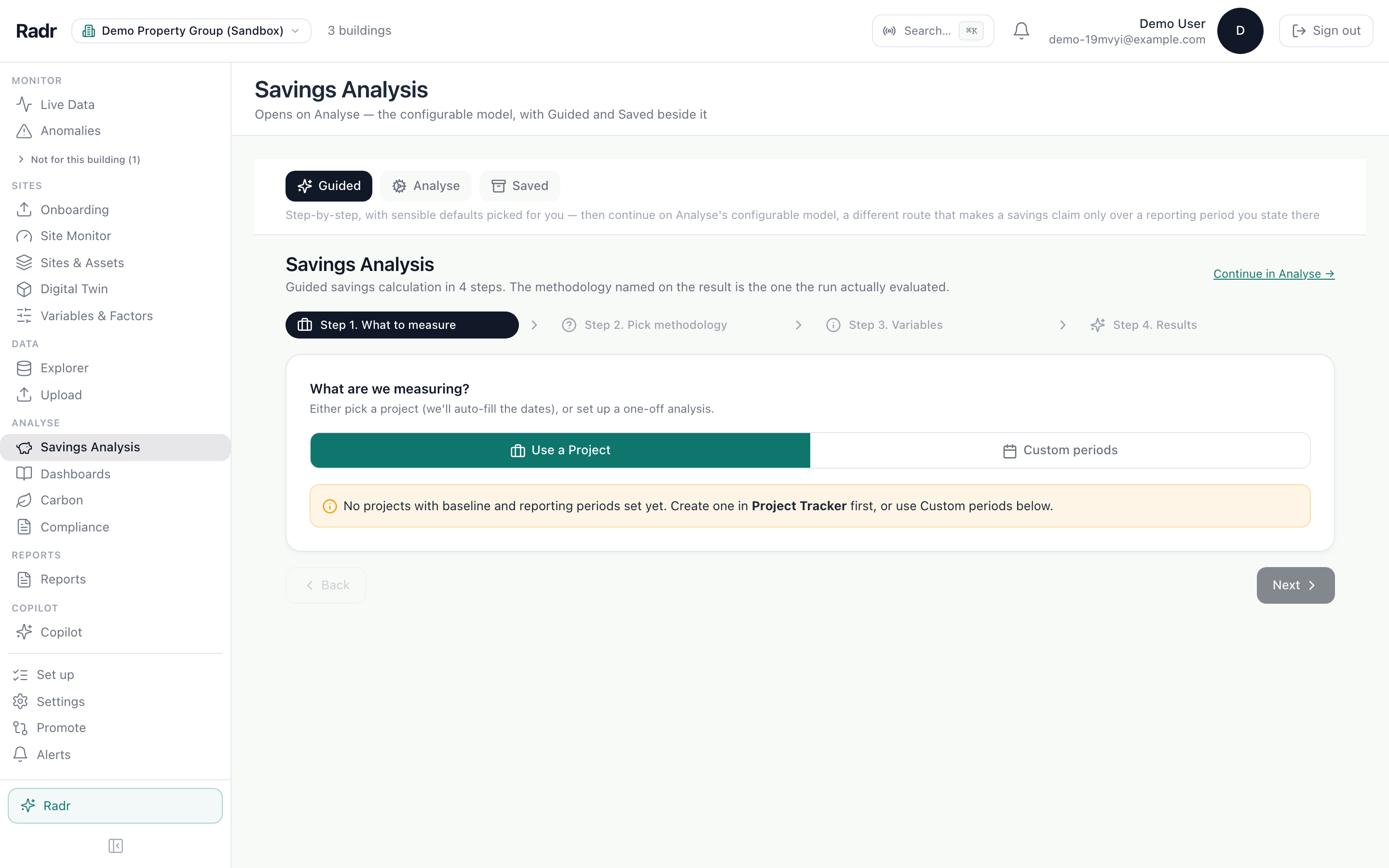
Step 2: Use Guided for a before-and-after comparison
Guided asks four questions in turn: what to measure, which method, which variables, and then shows the result. Use it when you want the choices made for you; Continue in Analyse takes you on to the full settings.
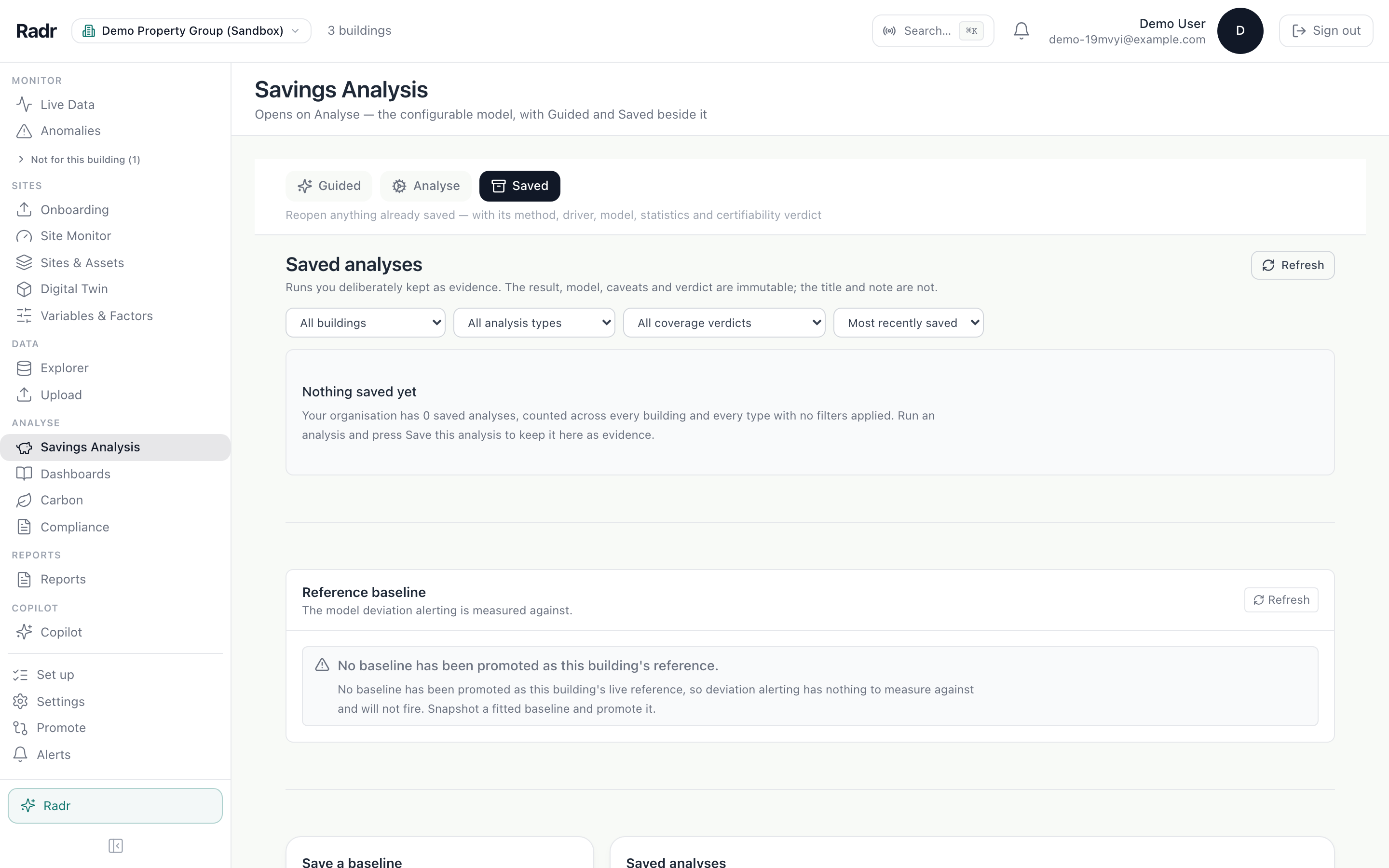
Step 3: Find kept runs under Saved
Saved lists every run someone chose to keep as evidence. A kept run cannot be changed; only its title and note can be edited.
What you’ll see
- The same building can be analysed both ways: Guided for the quick answer, Analyse for the one you will defend.
Troubleshooting
- Guided has no project to choose.
- Choose Custom periods, or create a project with its baseline and reporting periods under Projects.
Last verified against Radr on 28 September 2026. Screenshots show the real product with a simulated estate; every name and reading in them is invented.
Establish a baseline
Fit a baseline for a building in Savings Analysis: declare when it is occupied, apply a methodology card, fit it over a window and read the verdict it earns.
Savings and M&VChoose an IPMVP option
What IPMVP Options A, B, C and D mean for a project, how Radr decides which option a result may claim, and where to declare how your building is verified.
Savings and M&VGenerate a report
Generate a PDF or slide deck in Reports: choose the building, the report type and the period, then download it, or schedule it for regular delivery.
Savings and M&VStuck on a step?
Tell us which guide and which step, and we will help, then fix the guide.