Connect an Ecowitt weather station
Connect an Ecowitt weather station to Radr with its application key, API key and device MAC, so measured outdoor conditions can explain your building’s cooling load.
Before you start
- An Ecowitt account with the station added, and the application key and API key from Ecowitt’s developer settings.
- The station’s device MAC address, shown in the Ecowitt app.
Steps
Step 1: Open Settings, then Connections
In Settings, choose the Connections tab, then Data Sources.

Step 2: Choose Connect Source and pick Ecowitt Weather
In Source type, choose Ecowitt Weather — Radr polls it and label it. Enter the application key, the API key and the device MAC. Leave API host empty unless Ecowitt has given you a different one. Then choose Connect.
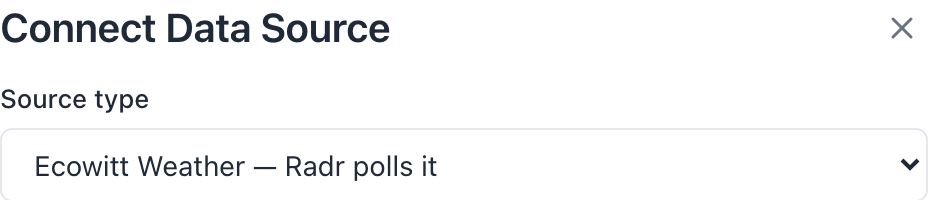
- Below the source type, the dialog asks for the label, the application key, the API key, the device MAC and, optionally, the API host.
What you’ll see
- The station appears under Data Sources, and its readings arrive at the next sync.
- To use it in a savings analysis, declare it as the building’s outdoor reference on Variables & Factors. Radr never picks a weather series for you.
Troubleshooting
- Radr cannot find the device.
- Check the MAC address against the Ecowitt app, including its colons.
- Readings arrive but an analysis ignores them.
- Declare the station as the building’s outdoor reference on Variables & Factors, and say why.
Last verified against Radr on 28 September 2026. Screenshots show the real product with a simulated estate; every name and reading in them is invented.
Establish a baseline
Fit a baseline for a building in Savings Analysis: declare when it is occupied, apply a methodology card, fit it over a window and read the verdict it earns.
Savings and M&VWatch live readings
Follow a building’s readings as they arrive in Live Data: the latest value from each instrument, the last day drawn as charts, and every machine with its state.
MonitoringStuck on a step?
Tell us which guide and which step, and we will help, then fix the guide.